-
×
 DAHUA 8GB PC5 5600 Laptop RAM DHI-DDR-C500S8G56
2 × KSh 4,400.00
DAHUA 8GB PC5 5600 Laptop RAM DHI-DDR-C500S8G56
2 × KSh 4,400.00 -
×
01AV412 Lenovo ThinkPad E470 Battery
1 × KSh 5,000.00
-
×
DAHUA 16GB PC5 4800 Desktop RAM - DHI-DDR-C500U16G48
1 × KSh 6,300.00
-
×
Laptop CPU fan for HP ProBook 6560B
1 × KSh 1,800.00
-
×
Samsung 8 GB 2666 Desktop RAM - M378A1K43CB2-CTD
1 × KSh 5,500.00
-
×
DAHUA 16GB DDR4 3200 C300 Series Desktop RAM - DHI-DDR-C300U16G32
1 × KSh 4,200.00
-
×
DAHUA 16GB PC5 5600 Laptop RAM - DHI-DDR-C500S16G56
1 × KSh 7,000.00
-
×
3 Pin Flower Power Cable for Laptop Adapter Charger
1 × KSh 250.00
-
×
DAHUA 16GB PC4 2666 C300 Series Desktop RAM - DHI-DDR-C300U16G26
1 × KSh 4,000.00
-
×
HP Compaq Presario CQ62 Laptop Battery
1 × KSh 2,500.00
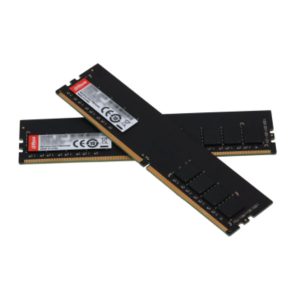 DAHUA 8GB PC5 5600 Laptop RAM DHI-DDR-C500S8G56
 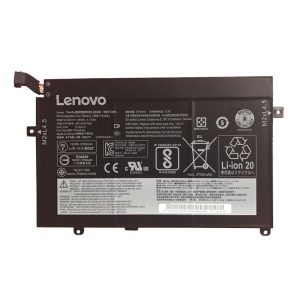 01AV412 Lenovo ThinkPad E470 Battery
  DAHUA 16GB PC5 4800 Desktop RAM - DHI-DDR-C500U16G48
 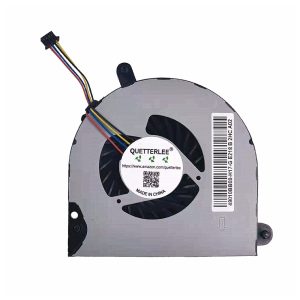 Laptop CPU fan for HP ProBook 6560B
 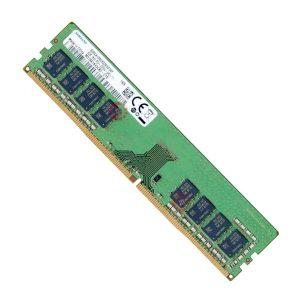 Samsung 8 GB 2666 Desktop RAM - M378A1K43CB2-CTD
 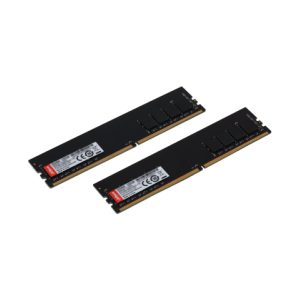 DAHUA 16GB DDR4 3200 C300 Series Desktop RAM - DHI-DDR-C300U16G32
 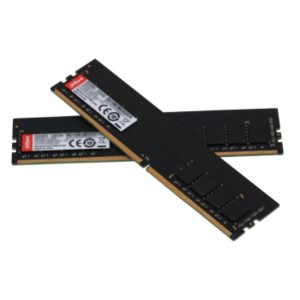 DAHUA 16GB PC5 5600 Laptop RAM - DHI-DDR-C500S16G56
 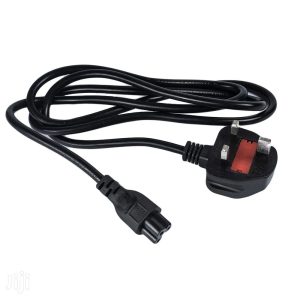 3 Pin Flower Power Cable for Laptop Adapter Charger
 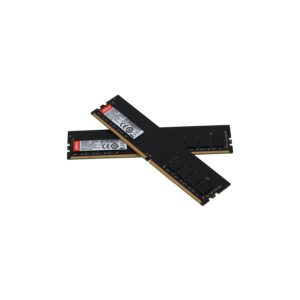 DAHUA 16GB PC4 2666 C300 Series Desktop RAM - DHI-DDR-C300U16G26
 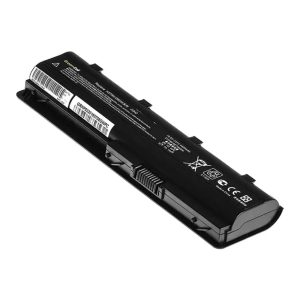 HP Compaq Presario CQ62 Laptop Battery
 Subtotal: KSh 45,350.00