-
×
 Logitech Pebble Mouse 2 M350s 910-007024
1 × KSh 0.00
Logitech Pebble Mouse 2 M350s 910-007024
1 × KSh 0.00 -
×
Logitech Pebble Keys 2 K380s Bluetooth Keyboard
1 × KSh 0.00
-
×
Logitech Wireless Mini Mouse M187 (Black) 910-002731
1 × KSh 0.00
-
×
Logitech M185 Compact Wireless Mouse (Blue) 910-002236
1 × KSh 0.00
-
×
Crucial 16GB DDR5-4800 SODIMM Laptop RAM
1 × KSh 9,500.00
-
×
Crucial 16GB DDR4 3200 Laptop RAM
1 × KSh 9,000.00
-
×
DAHUA 16GB PC5 4800 Laptop RAM - DHI-DDR-C500S16G48
1 × KSh 6,500.00
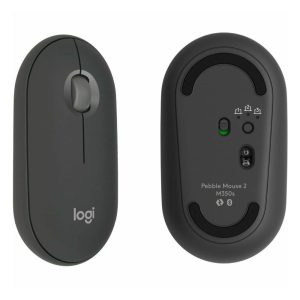 Logitech Pebble Mouse 2 M350s 910-007024
 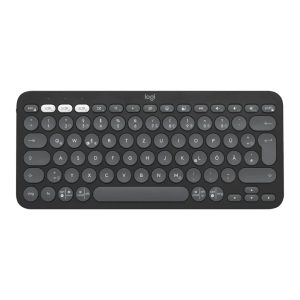 Logitech Pebble Keys 2 K380s Bluetooth Keyboard
 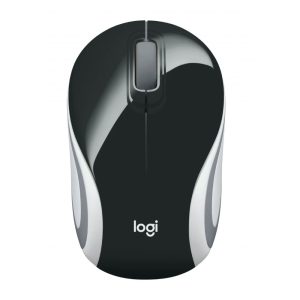 Logitech Wireless Mini Mouse M187 (Black) 910-002731
 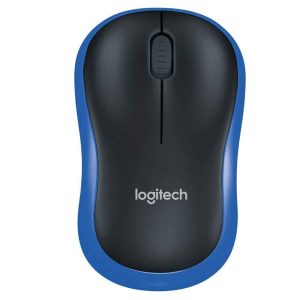 Logitech M185 Compact Wireless Mouse (Blue) 910-002236
 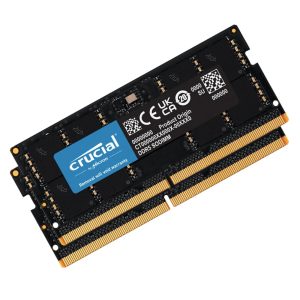 Crucial 16GB DDR5-4800 SODIMM Laptop RAM
 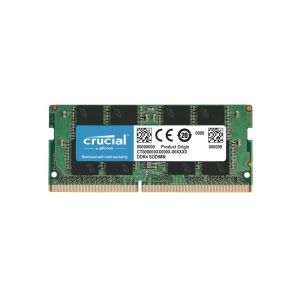 Crucial 16GB DDR4 3200 Laptop RAM
 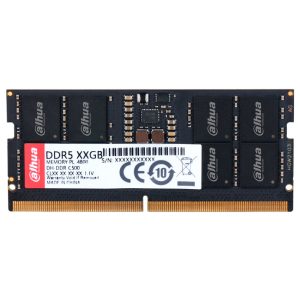 DAHUA 16GB PC5 4800 Laptop RAM - DHI-DDR-C500S16G48
 Subtotal: KSh 25,000.00